HiFinance
5
SECTION 1 - DEBTOR MENU
The Debtor sub-system is designed to maintain
current customer information is respect of the value of sales and outstanding
amounts receivable, together with orders on-hand. Account transaction details
are maintained in an open-item format. In this format, transactions are kept
until fully matched by a balancing contra-entry, usually a receipt. If you have
the CRM options enabled, access is also available to that, via the functions
available in Debtors.
Transactions are kept for at least 2 years or until
they are fully matched, which ever comes last.
Balances are also maintained for each of 12 last-year periods, 12 this-year
periods and 3 next-year periods. In this way, comparisons for sales, etc. can
be made between this year and next year. The 3 next-year periods allow you to
keep processing without forcing an end-of-year, for at least 3 months after the
end of the current financial year.
When goods are sent to customers, a service rendered
or a job performed, an invoice will be prepared on the computer. HiFinance
automatically posts the relevant information to the appropriate Debtor account
and the sales statistics, account status, salesman commission details and, in
the case of sale of goods, the relevant Inventory accounts. Also, the General
Ledger is updated, as appropriate. These files are updated without further
intervention of the operator.
The Debtors sub-system has the ability to calculate
tax from sales to exempt Debtors, as well as to produce monthly GST totals and
details.
A Debtor-by-Product Sales Analysis allows the user
to analyse the quantity and value of each product sold to each Debtor over the
current month, or any other period.
The Order Analysis displays details of all forward
and back orders by customer or by product, in order date or due date sequence.
These are kept on file until the order is labelled as complete.
Receipts and adjustments can be aged to any balance.
It is recommended that the take-on of the Debtor
sub-system be commenced at the start of a financial month, not partway through
a month. This will facilitate audit control and balancing.
The DEBTOR
MENU is accessed as item 1 or <F1> from the MAIN
MENU. On selecting this menu the following menu will be displayed:
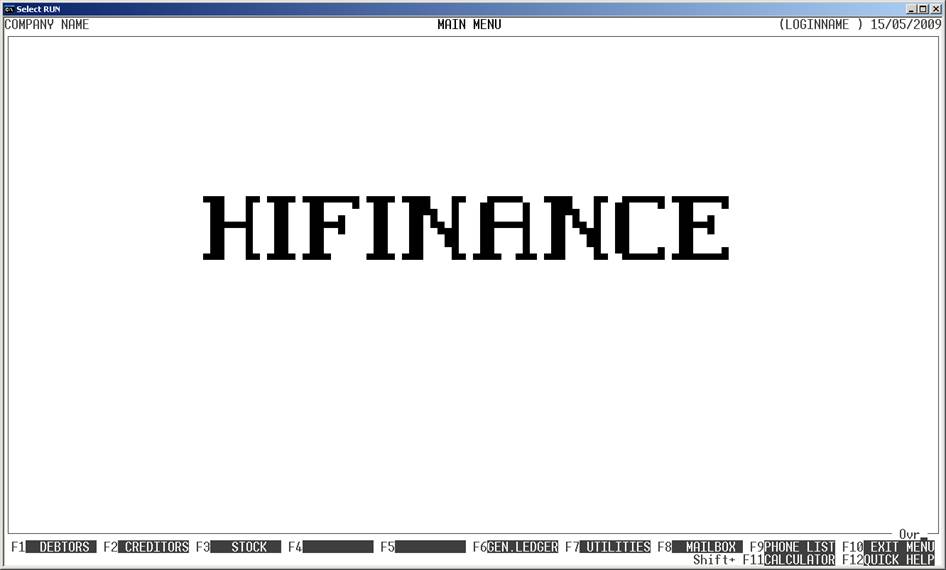
To return to the MAIN MENU, press <ESC>.
Fields
available on the DEBTOR MASTER file.
Name Comments
DEBTOR CODE This is the Debtor’s code. This is the code by which
the Debtor will be referenced throughout HiFinance. It is an alphanumeric
string from 1 to 15 characters long, without any leading or imbedded spaces.
Please refer to APPENDIX
A for a discussion of the ASCII collating sequence. If you embed a /, the Debtor is said to be a Sub-Debtor (sometimes referred to as a
Sub-Account, Daughter or Son Debtor). The portion of the code before the / must be the same as an existing Debtor and the portion after the / must be unique in the group. There must be only one / and it must not be the first or last character. A Sub-Debtor is
similar to a normal Debtor except that all outstanding balances will be on the
Main Debtor (sales will still be posted to the Sub-Debtor). This facility is
used when your customer is a large chain of shops and they require that orders
and deliveries be made to individual shops, but that the statement should go to
the head-office. Do not use this option if the individual shops pay their own
bills.
NAME The name of the Debtor. It may be up to 50
characters long. This field must not be left blank.
PERIOD BALANCES These are the account balances
for each by period for this Debtor. They are the amounts still outstanding in
each period.
TOTAL BALANCE This is the sum of all the PERIOD
BALANCES. It is
displayed in DEBTOR ENQUIRIES to
save you having to add it up. DEBTOR
ENQUIRIES also shows a balance for each accounting year.
SALES TOTALS HiFinance maintains a total of sales for each
accounting period. These are not normally displayed on the screen but may be
viewed in reports. A quick way of viewing these totals for a single Debtor is
to print the Debtor’s details in DEBTOR
ENQUIRIES.
ADDRESS This is a group of 4 fields (including post-code) that
allow you to insert the Debtor’s billing address. Use the third line for suburb
or county. HiFinance will print these fields on INVOICES and STATEMENTS.
CONTACT Insert the main contact’s name here. This field is never
printed on INVOICES, etc. It is,
however, printed on the AGED ANALYSIS
report as a quick reference. When you have the CRM option enabled, you can
setup multiple Contacts. Each one of these can have a different set of Phone
Numbers and Email addresses. In addition, you can specify which if these is the default Contact for Invoicing, Statements,
Orders, etc.
PHONE NUMBERS Here you may enter the work, home, Fax and Mobile phone numbers
of the contact person. This is useful, quick reference information. This
information is not included on any standard external reports. Note that if you
use these numbers to export emails, faxes and SMS, you should not embed spaces,
or any special characters, into the associated fields. (Eg
If you are using a function that sends SMS, you must enter a mobile number and
it should not contain any embedded spaces or special characters, otherwise the
SMS will fail.)
EMAIL Here you may enter the Debtor’s email address.
DISCOUNT This is the standard discount offered to the Debtor. It is
used in INVOICING.
CREDIT DAYS & DOLLAR These two fields are used in INVOICING to warn you of impending bad
debts.
CALC.CREDIT/PERIOD This field is only useful if you have set the option COMPUTE DAYS CREDIT ON PERIOD BASIS? in UTILITIES (see SECTION 7.1.2) to A. If you have set the UTILITIES
to Y or N, the current field will be
ignored. The current field serves the same function as the one in UTILITIES,
except that it can be set Debtor by Debtor. Sub-debtors can either have their
own setting, or they can inherit the setting of the parent depending on how you
set the option SHOW CONSOLIDATED BALANCE
IN INVOICING?
CREDIT STATUS You may set the CREDIT STATUS to either 0 for APPROVED; 1 for COD, 2 for STOP CREDIT, 3 for CREDIT CARDS or 4 for EFT. If the Debtor is flagged
as COD or CREDIT CARDS, a warning will be
displayed during INVOICING. If a
Debtor is flagged as STOP CREDIT, no further invoices may be
produced unless over-ridden by a SUPERVISOR’s
code. Code 4 for EFT is only available if the EFT option is enabled. Also,
you cannot set a sub-account to EFT. (See also below.)
NORMALLY PAYS BY This field is documentary. It is used as a quick lookup for credit managers to see how to expect a payment
from this client. You can leave this field blank or you can enter a value from A to Z. These letters correspond
to the payment types used in receipting. Eg Q
for Cheque.
If however, you enter a value here, this field will populate the initial value
when receipting.
DORMANT You may set this field to Y or N. The field can only be changed (or set to Y) if you are in the SUPERVISOR
mode. When this field is set to Y, no more Invoices or Orders
may be entered. The purpose of this field is to effectively archive the Debtor
without removing it from the Debtor master-file, so that it can be excluded
from normal transaction entry, but still used in mail-outs, etc. Unlike the CREDIT STATUS field, this field cannot be overridden during
transaction entry. If you set the option in SYSTEM DEFAULTS, see SECTION 7.1.2, dormant Debtors will not appear in Debtor
searches.
SALES TAX CODE This field allows you to enter the Debtor’s Sales-tax number. If
you enter a value here, HiFinance will not charge the Debtor tax on INVOICES. Exempt Debtors should not be
tagged here. They need to supply you with proof, each time they order goods.
Provision for this is made in INVOCING.
This field is to be phased out after 1/7/2000 in lieu of the GST but is still
used, in some sites for overseas transactions.
ABN This field allows you to enter the Debtor’s
Australian Business Number. This field prints on INVOICES after 30/6/2000 in place of the Sale-tax number.
PRICE CODE Here you may enter a number from 1 to 8 corresponding to prices 1 to 8 on the Inventory master-file. HiFinance will automatically adjust the
sale price on INVOICES, etc to that price level. See also SECTION 3 - INVENTORY.
GROUP This allows you to insert the Debtor into a Debtor
Group. Many Debtor reports may be sorted and totalled by Debtor Group. See also
SECTION 7.2.1 - DEBTOR
GROUP MAINTENANCE.
SALESMAN This allows you to attach a Salesman to the Debtor. Many
Debtor reports may be sorted and totalled by Salesman. See also SECTION 7.2.2 - SALESMAN
MAINTENANCE. Any commissions will be posted to this Salesman.
OTHER KEY1, 2 & 3 This allows you to insert the
Inventory item into any of 3 user-definable groups. Many reports can be sorted
and totalled by these fields. These fields will allow any code to be entered in
upper or lower case. Care should be taken because searches and sorts will place
the lower case entries after the upper case ones, eg a will come after Z. The name of this field may
be changed in SYSTEM DEFAULTS, see SECTION 7.2.
SPECIAL PRICING This field allows you to specifically lock this Debtor from
having special prices. It is possible to tag a special price for all
Debtors. There may be, however, specific Debtors who get their own prices,
independent of the special pricing system. In this case, enter N here. See also SECTION
3.5.1.
FREIGHT CATEGORY This field may be any 2 characters or may be left blank. It
is only used in certain implementations where freight is automatically charged
on Invoices. For other implementations, it is purely documentary.
PRINT STATEMENT or STATEMENT TYPE This field
may have one of two headings. If you are not using the Report Server software,
you only have the option of answering Y or N to PRINT STATEMENT. The normal answer is Y but if you have a Debtor who should never receive statements,
enter N here. If you are using the
Report Server software you have more choices. You may still enter N for Debtors who never should receive a statement, but you can also
specify how the statement should be generated. You may enter P for by-printer, F for by-fax, E for by-email or A if you wish to be asked
when the statement program is run. (Note that Y is not
an option.) The last option is used for customers who might sometimes require
faxes, sometimes emails, etc but for whom you cannot
specify absolute values until the statement is actually run. The last option
can make printing of statements very slow because HiFinance will stop and ask
you for each customer tagged in this way. However, the option is very flexible.
PRINT INVOICES or INVOICE TYPE This field may
have one of two headings. If you are not using the Report Server software, you
only have the option of answering Y or N to PRINT INVOICES. The normal answer is Y but if you have a Debtor who should never receive invoices,
enter N here. If you are using the
Report Server software you have more choices. You may still enter N for Debtors who never should receive an invoice, but you can also
specify how the invoice should be generated. You may enter P for by-printer, F for by-fax, E for by-email or A if you wish to be asked
when the invoice is about to be printed. (Note that Y is not an option.) The last option is used for customers who might
sometimes require faxes, sometimes emails, etc but
for whom you cannot specify absolute values until the invoice is actually
entered. Note that reprinting of invoices always invokes the Y or A option, as appropriate.
SORT INVOICE LINES This field is not used by most sites and can safely be ignored by
most users except that the response must be Y or N. The field specifies that a customer requires their Invoices sorted by
OTHER-KEY.
MINIMUM BALANCE This field is optional. It represents the minimum credit
balance your wish this Debtor to have. This field is used when the Customer
must retain a positive balance to trade with you. Examples are card systems,
open purchase systems. If you do not use this field, leave it as zero. If you
enter a value for MAXIMUM BALANCE but leave the value for MINIMUM BALANCE as zero, it will be equivalent to setting the ACTION AT MINIMUM to EGNORE.
MAXIMUM BALANCE This field is optional. It represents the maximum or target
credit balance your wish this Debtor to have. This field is used when the
Customer must retain a positive balance to trade with you. Examples are card
systems, open purchase systems. If you do not use this field, leave it as zero.
If the MINIMUM BALANCE is entered, the MAXIMUM BALANCE must be higher. (They can both be zero.) Where
fully implemented, HiFinance can automatically pull monies from the customer’s
account to make this customer’s credit balance match this value. Thus, care
should be taken not to enter a value that is too high.
ACTION AT MINIMUM This field tells HiFinance what to do if the credit balance
falls below the MINIMUM BALANCE. Not all options will be
valid for all installations, eg the option to SMS
will not be available if you do not have any way of automating that function.
However, the field can be exported and the report used to manually achieve the
contact with the customer.
Valid
values are:
Blank Do
nothing (Choose this option if the customer no longer wishes to be notified.)
S Send SMS
E Send Email
F Send Fax
C Call Client
D Make a
Direct Debit. This can be via a Credit Card or Bank Transfer, depending on CREDIT STATUS.
MODIFIED ON/AT/BY This displays the last time this Debtor record was
modified (eg description). It is stamped with the
date, time and the usercode of person who did the modification.
LAST SALE/RECEIPT ON /
FOR These are quick
reference fields. They are displayed during ENQUIRIES. HiFinance automatically maintains them when transactions
are entered. You cannot change these fields manually.
NOTE This is a field that allows you to attach a comment
to the account. For instance, you might use this to store specific requests
from this customer This field displays on the INVOICE (just on the screen) and might also warn the operator that
this customer should get the best price or should be called before continuing,
etc. The contents of this field is displayed, in a
box, on the right-hand side of the screen in DEBTOR ENQUIRIES.
DELIVERY ADDRESS This allows you to enter a Delivery address that is different
to the Billing address. This address is printed on INVOICES. Note that this field is 1000 characters long. Not all
Invoice formats can handle such a large field and, if this is the case, the information
might be truncated.
DELIVERY INSTRUCTIONS This allows you to enter any special Delivery Instructions.
These instructions will be printed on INVOICES.
Note that this field is 1000 characters long. Not all Invoice formats can
handle such a large field and, if this is the case, the information might be
truncated.
EXTRA SALES ORDER LINES This is a collection of 8 flags. This only appears if you have
enabled to option in SYSTEM UTILITITES (see SECTION
7.1.2). Each line that is enabled will cause Sales Orders and Picking
Slips to add the appropriate Inventory line to end of the printed document. For
more information, see SECTION 7.2.1.7.
The following fields are specific to certain
installations:
BPAY REFERENCE This field is generated automatically, if you have the BPAY option
enabled. The length of the number generated depends on how the option is setup
at your installation. This number is only assigned to main Debtors and is only
viewable in DEBTOR ENQUIRIES. Any
subsidiary Debtor will display the BPAY reference number of its parent. The Bpay option needs to be enabled via your dealer. It is will
not work if you simply enter a Bpay code into the
Company details. Enabling Bpay is not a simple
function and it requires communications with your Bank. Once it is enabled, you
need to pack the Bpay master-file using the menu
option 7.3.8.5. Here you will be
asked for a starting Bpay number. Typically, you
should enter a number like 1000000. This will scan all the
Main Debtor accounts (those without /) and create Bpay codes for all of them. The length of the code will be
one digit greater than the number of digits you enter. Ie
if you enter 1000000, the first number assigned
will be 1000000X, where X is a check digit. (Note that a 7 digit starting code will create an 8
digit Reference number range.) Not all numbers can be assigned. HiFinance will
assign the next valid Bpay number using the Bpay check-digit system code 1. From that
point on, HiFinance will automatically assign Bpay
reference numbers for all new Debtors. When searching for a Debtor, eg when entering a payment, HiFinance will accept a Bpay code and automatically translate it to the Debtor
code.
USER PASSWORD This field is generated automatically, if you have the WEB INTERFACE option enabled. The
number is always a 6 character filed and can be updated using a special program
available from the SYSTEM UTILITIES menu.
The following fields relate to using the EFT option and then
only if you have set the Debtor’s CREDIT
STATUS
field to 4.
BSB You must enter this field. It must be a 6 digit
numeric field. The field represents the Debtor’s Bank. HiFinance automatically
inserts the hyphen, required by the banks.
ACCOUNT NUMBER You must enter this field. The field represents the Debtor’s
Account number. The field should be left justified and not contain any imbedded
spaces. Hyphens are allowed.
EXPORT ON ANY DAY If you are able to EFT to the Debtor’s account on any
day, enter Y here, otherwise enter N.
EXPORT ON DAY If you have entered N for the EXPORT ON ANY DAY field, you may enter one or two day numbers
here. The numbers represent the day of the week you are able to EFT to
the Debtor’s account. Numbers start from 1 being Monday to 7 being Sunday. 0 means, not used. You must not enter the same
number in both fields (except 0). If you only wish to use
one day, make the second one 0 (not the other way around).
If you have entered Y for the EXPORT ON ANY DAY field, both fields must be set to 0.
DAY OF MONTH If you have entered N for the EXPORT ON ANY DAY field, and you have left both EXPORT ON DAY fields 0, you must enter either 1 or
2 numbers here. These represent the Day of the Month you are able to EFT
to the Debtor’s account. The number must be 1 through 31. The 2nd one can be zero, if not used. If you choose a
number such as 31 and there are not that many
days in a particular month, the EFT will occur on the 1st day
of the next month. This may be confusing, so it is best to enter numbers no
larger than 30. Typically, the numbers entered are 7 and 21.
If you have entered Y for the EXPORT ON ANY DAY, or you have entered any
non-zero values in the EXPORT ON DAY fields, DAY OF MONTH field must be set to 0. In
summary, you can either export every day, 1 or 2 specific days of the week, or
on a specific day of the month.
CALCULATE BY PERIOD This is a special function that only
relates to payment by month (see above). You can only enter a Y here if you have chosen to export by DAY OF MONTH. If you enter Y, the first day (and there
may be only one) will ignore any transaction not in the current month. This
means that if you wish EFT payments to occur on the 7th, all
outstanding transactions will be included, from last month and before, but none
will be included for the current month. If you have entered a second extraction
date, eg 21st, all transactions up to and
including the 21st will be included in the EFT payment. If,
on the other hand, you enter N here, the 7th
will mean: extract all outstandings up to, and
including, the 7th. How you set this field, depends on how you have
contracted to charge your client.
WITH LEGAL For most sites, this is documentary. If your installation
automatically bills overdue charges at the end month, setting this field to Y will suppress the function for this one Debtor. If you have sent this
Debtor for collection or legal processing, you should not charge an overdue
value. This field is changed manually. If you are using the
auto-allocation program (which auto-allocates Credits against Debits overnight)
Debtors that a tagged with a Y here, will be skipped.
LAST OVERDUE CHARGED ON For most sites this field is documentary. In some installations,
HiFinance automatically charges overdue fees. In this case, a late fee will
trigger this field. This stops HiFinance from charging overdue fees more than
once in the month. Any over-due fees will still be charged, unless the WITH LEGAL field is set to Y
LAST INTEREST CHARGED ON For most sites this field is documentary. In some installations,
HiFinance automatically charges interest on overdue transactions. In this case,
a late fee will trigger this field. This stops HiFinance from charging interest
more than once in the month. Any percentage fees will still be charged, unless
the WITH LEGAL field is set to Y.
LAST WARNING SENT ON If you have a site which uses the LAST OVERDUE CHARGES, this field displays the last time a warning
was sent to say that the OVERDUE will be charged. There are
2 warnings that can be sent. The first one is usually 3 days before the account
will become overdue. The second is sent 3 days after overdue. The account
normally becomes overdue 7 days after the account should have been paid. This
allows for cheques and bank transfers to be imported
ACTION O/DUE WARNING This defines the method of dealing
with the warnings above. HiFinance can send messages via email or SMS when the
account is about to become overdue. If you leave these fields blank, no message
will be sent. Also, there is ACTION OVERDUE which refers the error
message will be sent when the account actually becomes overdue.
AUTO SET STOP-CREDIT If you enter Y here, HiFinance
will automatically set the credit status to STOP CREDIT if an overdue charge is made.
AFTER WAITING This field if independent of the day the EFT is generated.
HiFinance will look at the date of the transaction and only create an EFT
if the number of days entered have passed. For instance, if you create an INVOICE
on the 3rd of the month and the AFTER
WAITING field
is set to 2, HiFinance will not generate
an EFT until the 5th of the month. If you do not run an export on the
5th, the EFT will still be generated on the 6th, or whenever the next
export is run. If you set this field to zero, an EFT could be created at any
time. This means that an INVOICE entered in the morning could be EFT’d in the afternoon (assuming the other
parameters allow it).
The following fields relate to using the FUELS option.
BANK-GUARANTEE This field contains the value of any Bank Guarantee you have from
the Debtor. Normally, this is only relevant for the main Debtor. This field may
not be the same as the value of any credit limit you choose to give the
customer.
CREDIT APPLICATION RECEIVED This field is documentary. It is set to N initially and then changed to Y (manually) when the
customer signes their Credit
Application. There is no specific report for this field but it can be exported.
CONTRACT If you have established a Contract with this customer, enter Y, otherwise enter N.
STARTS ON If you have entered Y in the CONTRACT field, you must enter a non-zero, valid date here.
This is the date the contract starts on.
EXPIRES ON If you have entered Y in the CONTRACT field, you must enter a non-zero, valid date here.
This is the date the contract e
MONTHLY MINIMUM PURCHASE If you have entered Y in the CONTRACT field, you must enter a non-zero value here. This
is the monthly purchase, in litres, required to be purchased by the client.
PENALTY RATES If you have entered Y in the CONTRACT field, you may enter up to 5 penalty rates. Each
one requires a percentage missed of the target MONTHLY MINIMUM PURCHASE, and a penalty value. Eg 5pc/$1000 means
that if the purchase total for the month is less than 95% of MONTHLY MINIMUM PURCHASE the customer should be
charged $1000. The rates should be entered in order of increasing percentage
value and the dollar amounts are not cumulative.
STATE This field contains a state number. It is a number from
2 to 8, where:
2 = NSW (inc ACT)
3 = Victoria
4 = Queensland
5 = South Australia
6 = Western Australia
7 = Tasmania
8 = Northern Territory
ZONE This field states which Zone the Debtor is in, within
the state. Each Zone contains a list of Government Rebate values (which might
be zero).
DO DISCOUNTS INCLUDE
FREIGHT If you have entered N here, the DELIVERIES program will add Freight onto the sales
price.
ARE PURCHASES EX-GATE If
you enter Y here, the DELIVERIES
program will only allow one Debtor per delivery and will not require Freight to
entered.
FUEL TYPE This heads up a column of up to 20 fuel types, as defined in FUEL
MAINTENANCE.
ACCEPTED You may specify here, which Fuels can be sold to this
customer.
DISC cpl For each accepted Fuel, you can
specify a Discount from Gate Price. Enter Discounts as a negative number. A
positive number will add to the price. There are two options for pricing. If
you choose to price your fuel as cost-plus, you should enter the BUY and SALE prices of the fuels as the same and enter a positive discount
(ie a markup). If you
choose to price as sale-minus, you should enter the BUY price, the base SALE
price as different value and then the discount. For further details on BUY prices see SECTION 3.5.6I.1. For further details on
sell prices see SECTION
3.5.6I.2.
SOURCE DEPOT This field is documentary. It states the Depot the fuel is
normally picked up from, for this customer.
The following fields relate to using the UNITED CARDS option.
This option changes some of the meanings of certain functions and fields. Debtor sub-accounts contain just enough information to represent a Card. Specifically, the DEBTOR NAME represents the name on the card, which is often different than the account name. OTHER KEY 2 is normally renamed to CARDNUMBER. This is described below. The CREDIT STATUS field is displayed as ACTIVE, as described below.
There are several stand-alone programs that link the current Debtor/Card information to the program that allows Voucher entry. These run automatically and the Voucher transactions are automatically uploaded as invoices to the Debtors/Salesman/Creditors/Inventory and General Ledger files. In this system, Debtors represent Accounts and Cards; Salesmen represent the Sites for the purposes of totalling the Sales and Commissions (Payments) and Creditors represent the Site Rebates.
Note that overdue charges are not charged for certain Groups. This list is changed from time to time but currently includes the following:
112
99
98
97
96
90
59
56
58
57
55
53
52
51
50
1000
38
54
2000
580
87
610
573
550
In addition, if an account has a negative balance (credit) and has a non-zero value in the MINIMUM BALANCE and MAXIMUM BALANCE fields, it will be ignored by the Overdue Charges routine.
NAME ON CARD This field is the NAME field on the Debtor, but is
entered and displayed with this prompt when a Card is entered. A card is
defined as a Debtor sub-account. The sub-account numbers must be in a specific
format:
U = United prefix = 78972500. The sub-account code will be U followed by the last 8 digits.
N = Norvac
prefix = 7046anything. The sub-account will be N followed by 4 digits.
P = Prepaid prefix = 78972501. The sub-account code will be P followed by the last 8 digits.
G = Gift prefix = 78972502. The sub-account code will be G followed by the last 8 digits.
Note that in general
the following is true:
Special Cash Cards 7001230000000011 (Diners)
7001230000000012 (Amex)
7001230000000013 (EFT)
Diners Club Cards start with 300
305
36
38
Amex Card start with 34
37
United Cards (private cards)
start with 7 (including Test Cards)
EFT Cards start with 5
TRADING NAME This is entered on the master-account. It is displayed on the
Card record as a visual check.
CLASS This field is a non-compulsory field that can be
used to tag a customer with a class. Normally, the class refers to how this
customer’s account is backed-up. Eg Insurance, Bank Guarantee, etc. The options available are
defined in the CLASS TABLE MAINTENANCE. (See SECTION 7.2.1.6U.)
A.C.N. This is an optional field. Here you enter the A.C.N. for
this Account. There is no test for valid A.C.N.s, unlike ABN.
ACCOUNT STARTED ON This field cannot be modified. It is set when the account is
initially loaded onto the system. It is mostly documentary. However, it can be
exported and can be used to extract a list of accounts that might be a few
months old and should be contacted.
INTRODUCED BY This field is mostly documentary, but it can be used to tag the
account, and when used with ACCOUNT STARTED ON, it can be used to, for
instance, send a finder’s fee to the Introducer.
ACCOUNT CLOSED ON When you close an account, you can set the DORMANT field to Y, but you can also set this
field to a date. If you put a date in this field, you should also set the DORMANT field to Y, although this is not
forced. The reason for separate fields is that you can make an account dormant
without closing it.
REASON CODE If you set a date for ACCOUNT
CLOSED ON
(above), you must also enter a reason code. This is number from 1 to 30 and the list may be found
in CANCELLATION REASONS (see SECTION 7.2.1.9U.1).
You may not choose a number that does not have a description value and you
cannot enter a REASON CODE unless there is a date in
the ACCOUNT CLOSED ON field.
CONTRACT STARTS/ENDS This field is documentary only. It
documents the date that the latest contract is valid for.
STATEMENT FEE This field represents a fee chargeable for sending out a
statement. Currently, this field is documentary, only.
FEE PER CARD This is the basis of a journal that is created to charge the
Debtor for the use of their cards. The value is ex-tax and is used to
automatically update the AUTO-JOURNAL. Every time you ADD, MODIFY
or DELETE a card, HiFinance will add up the number of ACTIVE cards and multiply it by this value to created the AUTO-JOURNAL.
One special case: For
Group 03 Debtors (for 2010/11) the FEE
PER CARD is
actually a FEE PER ACCOUNT and is stated as such on
the screen. If there is at least one active Card, Group 03 Debtors will be charged the fee, as entered and this will not be
multiplied by the number of Cards.
PROMOTIONAL DATE TILL This is a special field that, if entered, creates a 2nd
journal that cancels out the FEE PER CARD journal. This is used when
a customer is going to be charged but the charge is withheld for a period of
time (ie a promotional period). When the promotional
period expires, the account is automatically charged the fee.
FEE PER PURCHASE It is possible to charge a account by transaction rather than by card. The two
functions are mutually exclusive. If you enter a value here, the end of month
procedure will need to scan for purchases of this type.
CARD REPLACEMENT FEE Here you enter the fee the customer will be charged when
they ask for a replacement card. When entering a new card, the value from the
SYSTEM DEFAULTS will be inserted, but this can be set to any value.
EXPRESS POST CHARGE Here you enter the fee the customer will be charged when they ask
for a replacement card to be sent by express post. When entering a new card,
the value from the SYSTEM DEFAULTS will be inserted, but this can be set to any
value.
CHARGED This carries a value of (M)onthly, (W)eekly,
(Y)early. Currently, this field is ignored as the CARD FEES are always billed at the end of the month.
VOLUME DISCOUNT This is a value entered in cents per litre. When the
Statements are run, the process called APPLY VOLUME
DISCOUNTS (see SECTION 138U7) uses this value to apply a Loyalty Discount.
MONTHLY TARGET LT AND
VALUE This is an optional field used for
checking that the Customer has reached their target. This is normally
associated with offering a Customer a certain discount if they achieve a
certain volume of perchases.
SEND PROMOTIONAL INFO This field states that the Customer should receive
Promotional Material. If they have opted out, enter N here.
CONTRACT PRICING A client can either purchase at pump price or they can be
placed on a contract. If you choose Y here, several more fields
will open. Whenever any changes are made to this calculation, the following
programs should be updated: IMP-4COM, IMP-IVR, IMP-OPT, IMP-PCE, IMP-U12,
IMP-UCT, PUCD12 & PUCD19.
If
you choose to enable CONTRACT PRICING, you will need to enter the
following information.
HOME STATE This field is used to calculate the
State Markup. This is the value added to the Gate
price as part of the calculation of the Contract Price (see below). The State Markup is entered in MARKUP BY STATE (see SECTION
3.5.6U.2).
USE SETTELMENT DISC This is a special function, only available if Contract Pricing has
been enabled. If you enter Y here, the Customer’s
discount will not be applied when the invoice is created. Instead, you will be
given the option to apply the discount when the payment is received. Entering an N here, will cause the discount to be applied as the transaction
is processed. It is more useful for Customers who pay electronically.
APPLY PUMP-LESS DISCOUNT
AT NON CARD GROUP SITES This is an additional function
for special customers who have a contract to receive cost-plus at owned sites (ie in group CARDS)
but pump-minus everywhere else (eg branded and
reseller sites). If you enter Y here, you cannot enter any
sites in the CARDS group. A separate
screen will open where you can insert a discount per fuel. This will apply
whenever the customer purchases from a non-CARDS
site.
APPLY BEST OF PUMP OR
CONTRACT PRICE If the customer is on a contract price,
a low pump price might actually be cheaper than the TGP plus markups. If the contract reads that the customer is
entitled to get the lesser of the two prices, enter Y here. If you enter N, the contract price will always
be used.
DISC (cpl) For each Fuel, ie
PLUS, ULP, DIS, LPG, PULP, PRE100, E85,
ADBLUE and PREDIS, you may enter a discount. This is used as part of
the calculation of the Contract Price (see below).
NET MARKUP This is a quick reference table that shows what the Customer’s markup is, by fuel type. It uses the HOME STATE markup and subtracts the
Customer’s discount. As the customer will also be on-charged the freight, it
represents the gross profit of any sales.
If
you choose not to enable CONTRACT PRICING, you will need to enter the
following information.
DISC (cpl) For each Fuel, ie
PLUS, ULP, DIS, LPG, PULP, PRE100, E85,
ADBLUE and PREDIS, you may enter a discount.
START/END DATE For each Fuel, you must enter a START and END date. These are the dates
when the discount is effective from and to, inclusive. The END date must be greater than the START date. If the discount is
permanent, use the default values of zero for the START date and 31/12/9999 for the END date. Both entries must be valid dates, even if the discount is zero.
Two
functions keys are also available in ENQUIRIES:
F6 This will calculate the price that a customer
will be charged on any specific day. You are asked for the PICKUP DATE and the SITE code. When you enter these,
HiFinance will load the Terminal Gate Price (TGP) for the day and align the
Site and thus the freight. Then each Contract Price will be calculated as TGP
+ freight – discount.
F9 This option is
only available if the Customer is set for Settlement Discount. HiFinance will
scan through all the transactions for last-month (based on the date at the top
of the screen) and calculate the available discount. This is the same
calculation used for STATEMENTS and RECEIPTS.
CARDNUMBER Thus is actually OTHER KEY 1 but is named CARDNUMBER as this is what it represents. You can search for a
record by CARDNUMBER in selected programs.
PIN Thus is actually OTHER KEY 2
but is named PIN as this is what it
represents. The PIN is exported to the various
interfaces, eg IVR, and, if non-zero, becomes a
required field when the customer makes a purchase.
DEPT.CODE Thus is actually OTHER
KEY 3 but it
represents the Department in which the Card is associated. This has no baring on HiFinance, but it is
used in certain reports, eg FUELTRAC, as is a
requirement from some Government Departments and some other large clients.
ACTIVE? This is a renaming of the CREDIT STATUS field. An account can be overall enabled but the card can be ACTIVE or INACTIVE. You should not normally
post to an account that is on STOP-CREDIT, but even if its credit is
OK, the card itself may be stopped.
USED AT POSTEC? This field is used to trigger certain exports. When the
card list is exported to POSTEC, it only exports those cards that have a Y in this field.
USED AT OPT? This field is used to trigger certain exports. When the card
list is exported to Transequal and Tweb, it only exports those cards that have a Y in this field.
THIS CARD CAN BE USED TO
PURCHASE This is a collection of fields. Each one
represents a fuel type. You must enter either a Y or N in each field. Most of the external import mechanisms (eg PC-EFTpos) use this
information to filter which items may be purchased on this card.
The current list of
fuels is:
1 PLUS
2 ULP
3 DIS
4 LPG
5 PREMIUM ULP
6 PREMIUM 98
11 E85
12 ADBLUE
13 PREDIS (PREMIUM DIS)
7 LUBES
8 CARWASHES
9 SHOP-GST
10 SHOP-NOGST
This list is used,
consistently, throughout the system. (Note that the numbers are out of
sequence. This is historical and deliberate.)
MONTHLY
LIMIT (VALUE)? This field is zero, for no
limit or you may specify a monthly dollar limit. This will only work with PCEFTpos, QuickFuel and UCT
terminals. It will alert the system to only allow the specified limit on that
card. This is independent of the limit on the account. This is used when a
customer wishes to limit an individual card holder to a specific limit, which
would otherwise be allowed to use up the total account limit. This value
includes all transactions for the card, including Shop Sales, etc. For POS
devices other than PCEFTpos, HiFinance simply puts a
stop on the card until the end of the period.
DAILY
LIMIT (VALUE)? This field is zero, for
no limit or you may specify a daily dollar limit. This is independent of the
limit on the account. This is used when a customer wishes to limit an
individual card holder to a specific day limit, which would otherwise be
allowed to use up the total account limit. This value includes all transactions
for the card, including Shop Sales, etc. Note that there is potentially a
timing issue on this function. HiFinance can only stop the card once the limit
has been hit. Thus, the first transaction for the day will go through, up to
the account limit. Then HiFinance will set a stop on the card and no further
transactions will be allowed until the card is released. Note also that some
POS systems update on a 24 hour cycle or are erratic in their update schedules.
This might cause a card, at say an OPT, to be not triggered at all, or held on
stop for an extra day.
MONTHLY
LIMIT (LT)? This field is zero, for no limit or you may
specify a daily litre limit. The restraints on this function are the similar to
the DAILY LIMIT (VALUE). The main difference is
that only litres are added up (ie for fuel only).
SEND PROMOTIONAL INFO? This field is documentary but it is used when deciding if a
customer has opted into receiving promotional information. It is automatically
set when the customer is created via VEDA. The options are Y for send and N for don’t send.
FORCE ODOMETER ENTRY? This field relates to the entry of odometer readings when
entering a purchase. It only relates to Quick Fuel sites. There are 3 options: Y means force an entry and make sure that it is greater than the last
one. A means that the entry is
optional, ie it can be zero. Entry is allowed but no
specific tests are made for correctness. N means that the option does
not appear at the POS.
EXCEPTION HANDING
(RED-FLAG) If a Y is entered into any of these, the flag will not be triggered for that
card. This is used to control the end-of-day exceptions report.
IF
> 2 PURCHASES PER DAY? This
will trigger an exception if the card is used more that
2 times in a day. For some cards, eg Taxi, this needs
to be disabled.
IF NOT USED FOR 30 DAYS? This will be triggered if the card is not used for at least 30
days.
IF
THE CARD IS USED IN > 1 SITE ON THE SAME DAY? If the card is used in multiple sites, on the same day, an
exception will be triggered.
IF MORE THAN 30% FROM AV
OF LAST 6 PURCHASES? HiFinance will add up
and create a 6 purchase average. If the current transaction is too different to
the average, an exception will be triggered.
IF
MORE THAN $100 PER DAY IN SHOP SALES? If
the card is used for SHOP-SALES (with or without GST) for more than a total of
$100 in a single day, an exception will be triggered.
DUPLICATE PURCHASE WITHIN
1 MONTH? This flag looks for an exact match in the last
30 days. An exact match must be for the same fuel and dollar value.
LAST 3 FUEL PURCHASES NOT
SAME AS CURRENT? This will flag a card that is suddenly
used for a different fuel type.
SALES LOST REPORT? The sales-lost report looks for a sudden drop in usage. The
report shows the percentage and litres lost when compared to the last month.
This report is run monthly.
